
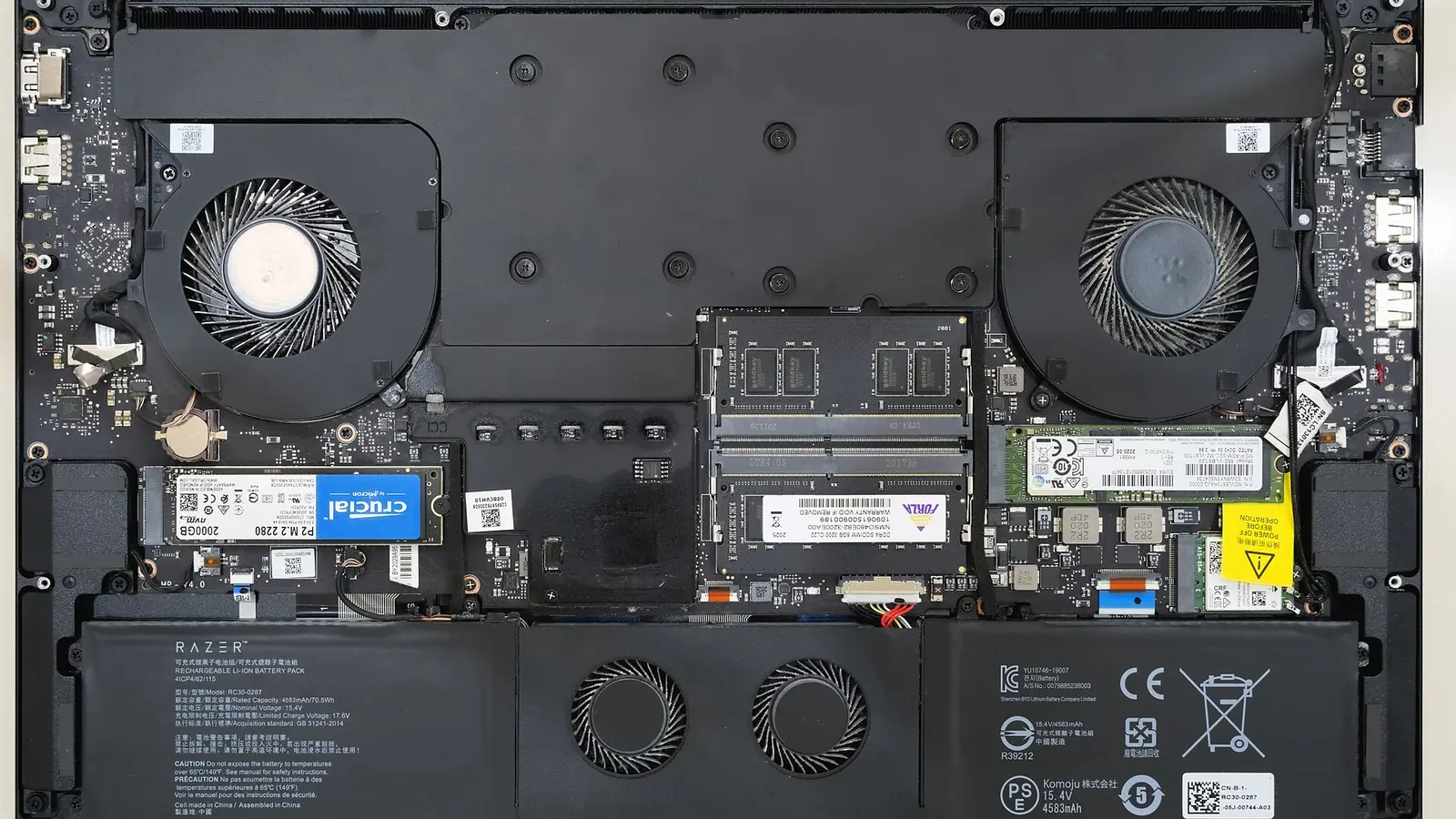
Laptop battery replacement can be a simple home job if your battery clips out or is screwed inside with an accessible cable. It is not a good DIY job if the battery is swollen, glued in, buried under major parts, or your maker says the model needs specialist handling.
First, confirm the battery is really the fault
A weak battery is not the only reason a laptop will not run for long or will not charge. Before you buy a part, separate a battery problem from a charger, charging port, system board, heat or software issue. A system board is the main circuit board inside the laptop; the charging circuit on it controls how power reaches the battery.
- Battery wears down quickly: compare the battery’s present capacity with its design capacity where your laptop maker provides that tool. Microsoft defines design capacity as the charge the battery was designed to hold, and full charge capacity as what it can hold now.
- Surface capacity is low: Microsoft says that if capacity is below 70% of design capacity, replacing the battery can give more capacity.
- Mac shows Battery Health: Apple says Battery Health may show Normal or Service Recommended. Service Recommended means the battery holds less charge than when new or is not functioning normally.
- Nothing changes with the charger connected: do not assume the battery is the only failed part. The power adapter, USB-C charging setup, charging port or internal charging circuit may also need checking.
- The laptop works only on charger: that points more strongly toward the battery or its connection, but the exact repair still depends on the model’s service design.
- The battery looks swollen, smells strange, leaks, feels hot, or makes sounds: stop. Treat it as unsafe rather than as a normal replacement job.
If you are unsure whether buying a battery will fix the issue, ask for model-matching help before ordering. LaptopClinic.sg can be reached on WhatsApp at +65 8828 8180, and the store is online only with no public walk-in counter.
Identify the design before opening the laptop
Laptops do not all use the same battery access method. Older business-style machines may have an external latch battery. Many newer laptops hide the battery under the base cover. Some slim models place the battery behind other parts or use adhesive and special tools.
| Design | How you recognise it | DIY risk |
|---|---|---|
| Clip-in | Latch on base | Lower |
| Screwed internal | Base cover removed | Medium |
| Adhesive or buried | Parts removed first | Higher |
Dell’s Latitude 3560 is a clear example of a latch-style design: the manual says to follow the before-working-inside procedure, slide the battery latch to release the battery, then pull and lift the battery out. That is the simplest type to recognise because you can see the latch without removing the bottom cover.
Dell’s Latitude E5570 shows the more common internal path: shut down, disconnect power, remove the base cover, disconnect the battery cable from the system board, remove the battery screws, and lift the battery out. Dell’s Latitude 5491 page follows the same idea, adding that the battery cable is disconnected and unrouted before the captive screw is loosened and the battery is lifted away.
Some machines are not reasonable home repairs. Apple’s MacBook Air M2 battery procedure starts with battery safety, then requires prerequisite parts such as the bottom case, heat sink and logic board to be removed. Its tool list includes alignment pins, battery adhesive, a battery support frame, a press plate, ESD-safe tweezers, IPA or ethanol wipes, an iPhone display press, a nylon probe and Torx Plus bits. That is a strong sign to stop unless you already have the skill and tools.
Find the exact battery before you buy
The exact model matters more than the outside shape. A battery must match the laptop’s mechanical fit, connector, electrical rating and the maker’s service design. Microsoft tells Surface owners to review the service guide for the exact model before buying parts or starting repair, and to check whether the device supports self-repair, whether the part will fix the issue, whether they have the skill, and whether they have the right tools.
Use this order when matching a battery:
- Find the full laptop model. Use the service tag, printed base label, system information screen, or the model name shown in the maker’s service documentation.
- Find the battery part number. If the battery is already accessible, read the code on the battery label. Apple’s MacBook Air M2 orderable-parts page, for example, identifies the battery as part number 661-26150.
- Compare the rating. Battery listings commonly show watt-hours or milliamp-hours; the laptop’s service document is the safer reference for what belongs in that model.
- Compare the connector and mounting. Internal batteries may use a cable, screws, adhesive, a tray or a routed cable path. The Dell Latitude 5491 procedure specifically includes disconnecting and unrouting the cable.
- Check whether your model is meant for skilled self-repair. Microsoft says Surface self-repair is for technically experienced people with the right tools. Apple says built-in Mac laptop batteries should be replaced through appropriate service channels or Self Service Repair for eligible models.
For HP owners, a compatible part listing can be useful when your existing battery label matches it. For example, LaptopClinic.sg lists an HT03XL HP laptop battery with compatible codes and selected HP model references. If your code does not match, do not rely on shape alone.
You can also browse the battery category, but the safer approach is to match by battery code and laptop model together. LaptopClinic.sg is not affiliated with any laptop brand; brand and model names are used only to show compatibility.
Prepare the workspace and tools
Lithium-ion batteries store energy in a compact pack. Mishandling one can cause more than a failed repair. Apple warns that improper replacement, handling, or failure to discharge can cause overheating, swelling, venting, leaking, fire, injury, data loss or device damage.
If the battery is swollen, stuck, leaking, hot, smoking, sparking, hissing, popping, or suddenly swelling, do not pry it out. Stop using the laptop, keep it away from flammable material, and ask a qualified technician or proper battery disposal service for help.
Before opening the laptop, keep the job calm and controlled:
- Back up your important data before repair.
- Shut the laptop down and disconnect the power cable.
- Discharge the battery as much as the service document requires; Dell says to discharge the lithium-ion battery as much as possible, while Apple says to fully discharge before repair.
- Work on a stable, nonflammable, ESD-safe surface. ESD means electrostatic discharge, the small static shock that can damage electronics.
- Keep liquids away from the laptop, as ASUS instructs in its service manual.
- Use non-conductive tools near the battery where possible; Apple warns against conductive tools near the battery.
- Do not crush, bend, pry against, puncture, disassemble or expose the battery to high temperature. Dell gives these warnings for lithium-ion batteries.
Common internal-battery tools include Phillips screwdrivers and a small plastic scribe, as listed in Dell’s service manual. A plastic scribe is a non-metal tool used to lift connectors or covers without scratching or shorting parts. Some models need special drivers, adhesive supplies or presses, so check the service guide before you start.
Replace a clip-in battery
If your laptop has a visible external latch, the process is usually much simpler than opening the machine. Do not force anything; if the latch does not move cleanly, check the exact manual for your model.
- Shut down the laptop.
- Disconnect the power adapter and any attached cables.
- Follow the maker’s before-working-inside procedure if the service manual gives one.
- Slide the battery latch to release the pack.
- Pull and lift the battery out, as Dell describes for the Latitude 3560.
- Insert the matching replacement battery into the bay until it sits securely.
- Reconnect power and check that the system recognises the battery.
If the external pack is jammed, swollen or distorted, treat it as unsafe rather than forcing the latch.

Replace a screwed internal battery
For many modern Windows laptops, the battery sits under the base cover and connects to the system board with a cable. This is possible at home only when the service guide is straightforward and you are comfortable handling small connectors.
- Shut down the laptop and disconnect the power cable.
- Place the laptop on a stable ESD-safe surface.
- Remove the base or compartment cover using the model’s service instructions.
- Disconnect the battery cable from the system board. ASUS and Dell both include this step in internal-battery procedures.
- If the cable is routed through clips or channels, unroute it carefully before lifting the battery.
- Remove the screws securing the battery. Dell’s Latitude E5570 uses screws; ASUS also instructs removing the battery screws.
- Lift the battery out without bending or prying against the cells.
- Place the new matched battery in the same position.
- Secure it with the removed screws, as ASUS instructs.
- Reconnect the battery cable, making sure it sits evenly.
- Reinstall the cover, reconnect power, and start the laptop.
Stop if you find adhesive strips, hidden cables, liquid damage, corrosion, a creased flex cable, or a battery that will not lift after the proper screws are removed. Apple’s MacBook Air M2 procedure warns not to touch the battery flex cable connector, not to crease the trackpad flex cable, and not to remove the battery from the battery tray, which shows how model-specific these repairs can be.
After installation and disposal
After the laptop starts, confirm that the battery is detected and charging according to the operating system’s battery display or the maker’s diagnostic tool. Surface owners can compare full charge capacity with design capacity using Microsoft’s Surface Repair Tool or Surface Diagnostic Toolkit. Mac owners can check whether Battery Health shows Normal or Service Recommended.
If the new battery is not detected, shut down and recheck the connector only if you can do so safely. If it still fails, stop replacing parts at random. The issue may be the charger, port, cable, firmware, charging circuit or another internal fault.
Do not put an old lithium-ion laptop battery into ordinary household rubbish. Apple says waste batteries should be disposed of according to local laws. In Singapore, use a proper e-waste or hazardous-battery route, and ask a technician or recycler if the battery is swollen or damaged. Store it away from heat and flammable material while arranging disposal.
If you are still choosing a part, the related How to Buy a Laptop Battery guide can help you compare model codes before ordering. For Singapore orders, LaptopClinic.sg provides free delivery in Singapore.
Questions and answers
Can I do laptop battery replacement at home?
Yes, if the battery is a clip-in pack or a straightforward screwed internal pack and you have the correct part, tools and service instructions. Do not do it at home if the battery is swollen, glued in, buried under major parts, or the maker’s procedure calls for specialist tools you do not have.
How do I know if my battery is inside the laptop?
If there is no visible latch or removable battery bay on the underside, it is likely under the base cover. Dell’s Latitude E5570 and Latitude 5491 procedures both require base-cover removal before the battery cable and securing hardware can be accessed.
Can I buy a battery just because it has the same shape?
No. Match the laptop model, battery part number, electrical rating, connector and mounting method. Apple’s MacBook Air M2 parts page shows why part numbers matter: the battery is identified by a specific service part number, and other parts can vary by configuration.
What should I do if the battery is swollen?
Do not press, puncture, bend, pry or continue charging it. Dell says to contact support if a swollen battery is stuck, and Apple lists warning signs such as smoke, sparks, sudden pouch swelling, hissing or popping. Stop and ask a technician.
What tools do I need for an internal battery?
It depends on the model. Dell lists common tools such as Phillips #0 and #1 screwdrivers and a small plastic scribe. Other models may require special bits, adhesive, alignment tools, ESD-safe tweezers or presses, so read the exact service guide first.
Sources
- Dell: Dell Latitude 3560 Owner's Manual - Removing the battery
- Dell: Dell Latitude E5570 Owner's Manual
- Dell: Latitude 5491 Service Manual | Dell Singapore - Removing the battery
- Microsoft: Self-repair information for your Surface device
- Microsoft: How to check the battery capacity of your Surface and view replacement options
- Apple: If you see battery “Service Recommended” on your Mac laptop - Apple Support (SG)
- Apple: Mac Battery Safety
- Apple: MacBook Air (M2, 2022) Exploded View and Orderable Parts
- Apple: MacBook Air (M2, 2022) Battery
- ASUS: ASUS B1400/B1500CBA Service Manual