
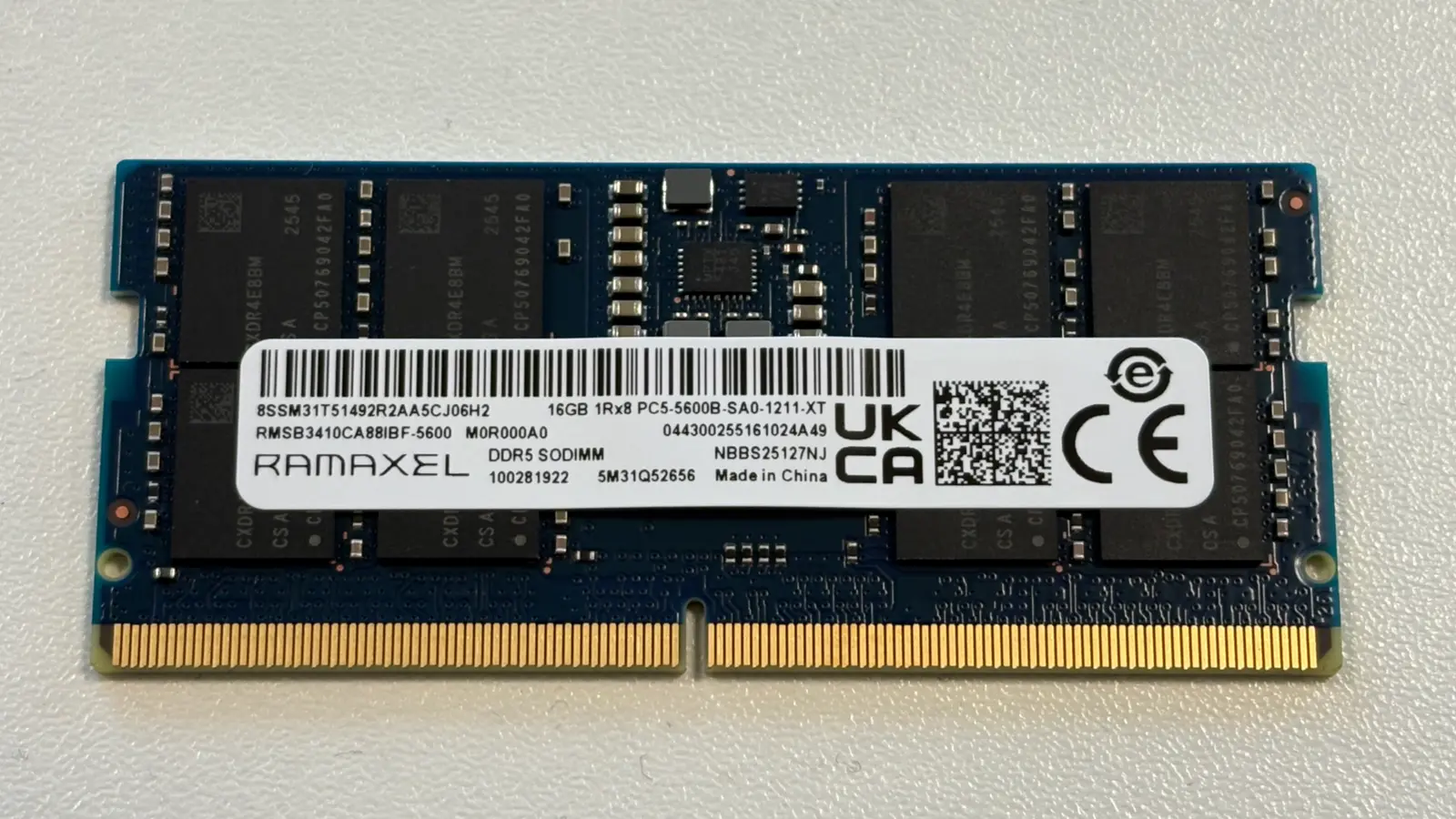
Laptop DDR5 RAM is the removable DDR5 memory used in notebooks that have DDR5 SODIMM, CSODIMM or similar memory slots. It will not help a laptop that uses a different memory type, so the right first step is to confirm your exact laptop model, the slot type and the speed limit before buying.
Do you actually need new memory?
More memory helps when your laptop is short of working space. RAM is temporary memory: it holds the apps, browser tabs and documents your computer is actively using. If the laptop is slow because the system drive is failing, Windows is damaged, the cooling system is clogged, or the mainboard has a fault, replacing memory may not solve the problem.
Before ordering a module, check whether the symptoms really point towards memory.
- Likely memory capacity issue: the laptop works, but becomes slow when many apps or browser tabs are open, and improves when you close them.
- Possible memory fault: random restarts, blue-screen crashes, failed memory tests, or boot problems that change after reseating a removable module.
- More likely storage or Windows issue: the laptop is slow to open files, freezes while loading the desktop, or reports disk errors.
- More likely overheating: the fan runs hard, the laptop shuts down under load, or the casing becomes unusually hot.
- More likely board damage: there are liquid marks, corrosion, burnt smell, missing components, or no sign of power at all.
If the laptop has removable memory, a reseat can be a useful check: remove the module, then install it again so it is fully seated and clipped down. ASUS describes the physical DDR5 SODIMM/CSODIMM installation action as aligning the module notch with the slot key, inserting it into the slot, then pressing down until the retaining clips click into place.
If you see corrosion, scorch marks, a swollen battery, liquid residue, or a connector that does not close normally, stop. Do not keep testing memory modules; ask a technician to inspect the laptop first.
Find the exact memory type your laptop accepts
The safe compatibility path starts with the exact laptop model or SKU, not just the brand name. Intel lists supported memory type and maximum memory speed by mobile processor family and exact processor SKU, and tells notebook users to check with the laptop maker for supported memory. That matters because two laptops with similar processors can still have different slot layouts or board designs.
Use this workflow before buying:
- Find the exact model or SKU. Look at the label on the base cover, the invoice, the system information page, or the laptop maker’s support page.
- Find the official specifications or service manual. Look for words such as DDR5 SODIMM, CSODIMM, LPDDR5X, slot count, maximum memory, and supported speed.
- Check the processor memory support. Intel’s table shows, for example, DDR5-4800 MT/s on 12th Gen Core laptop processors, and up to DDR5-5200 or DDR5-5600 MT/s on several 13th/14th Gen and Core Ultra laptop families. AMD lists the Ryzen 7 8840U with DDR5-5600 or LPDDR5x-7500 support, depending on platform, and the Ryzen AI 9 HX 475 with DDR5-5600 or LPDDR5x-8533 support.
- Confirm the physical slot type. Lenovo lists some ThinkPad workstations with DDR5 SODIMM/CSODIMM slots, while ASUS lists DDR5 SODIMM/CSODIMM requirements for its NUC 15 Pro Kit. A label saying DDR5 on a processor page is not the same as proof that your laptop has an accessible memory slot.
- Match capacity and module type. Some systems accept ordinary non-ECC DDR5 SODIMM modules; others list CSODIMM options, ECC configurations, or a strict capacity limit.
If you are unsure, take clear photos of the laptop model label, the existing memory label if accessible, and the memory slot area. LaptopClinic.sg is an online store with no public walk-in counter, so compatibility questions are best sent through the contact page or WhatsApp at +65 8828 8180 before ordering.
SODIMM, LPDDR5X and CSODIMM in plain English
A SODIMM is the compact removable memory module style commonly used in notebooks and small-form-factor PCs. Kingston describes its FURY Impact DDR5 as DDR5 SODIMM memory for notebooks and small-form-factor PCs, with modules measuring 69.6 mm by 30 mm. Kingston’s ValueRAM DDR5-5600 page also describes non-ECC unbuffered SODIMM options, including 32 GB and 48 GB capacities.
LPDDR5X is different. AMD’s Ryzen 7 8840U page lists DDR5 on FP7r2 and LPDDR5X on FP7-FP8, while its Ryzen AI 9 HX 475 page lists DDR5 and LPDDR5X support on FP8. In practical terms, a laptop specification that says LPDDR5X should make you pause and check the service documentation carefully, because it is not the same purchase as a removable DDR5 SODIMM stick.
CSODIMM is another DDR5 laptop memory form factor appearing in newer specifications. Lenovo lists the ThinkPad P16s Gen 4 Intel with two DDR5 SODIMM/CSODIMM slots, while ASUS lists DDR5 6400 MHz CSODIMM as an option for its NUC 15 Pro Kit. Do not assume a DDR5 SODIMM and a CSODIMM are interchangeable unless the laptop maker’s specification says the slot supports the module type.
Also check whether the laptop calls for non-ECC memory. ECC is error-correcting memory used in some workstation-class systems. ASUS lists non-ECC for its NUC 15 Pro Kit memory requirements, while Lenovo’s ThinkPad P16 Gen 3 specification separates ECC and non-ECC maximum memory configurations.
Does the speed number on the label matter?
The speed number matters, but it is not a promise that the laptop will run at that number. DDR5-4800, DDR5-5600 and DDR5-6400 are transfer-rate labels. The real operating speed depends on the processor, chipset, firmware, slot type, number of modules and the laptop maker’s platform limits.
Intel’s mobile processor table shows different DDR5 ceilings by processor family and exact SKU. AMD lists DDR5-5600 for the Ryzen 7 8840U and Ryzen AI 9 HX 475, while also listing faster LPDDR5X speeds for those platforms. Lenovo gives a clear example of downclocking: the ThinkPad P16 Gen 3 may ship with DDR5-5600 or DDR5-6400 memory, but its notes say 4 x 32 GB or 4 x 48 GB configurations run at 4000 MT/s, while other configurations run at 4400 MT/s because of platform limits.
High-speed modules can also depend on firmware settings. Kingston says XMP 3.0 modules can overclock to their highest published frequency only by selecting the profile in BIOS. If your laptop does not expose that setting, or if the platform limit is lower, the module may run below its label speed.
So is DDR5-5600 worth paying more for than DDR5-4800? It depends on your laptop’s documented ceiling. If the processor and laptop specification support DDR5-5600 and the module type is correct, it may make sense. If the laptop is limited to DDR5-4800, or the maker states a lower platform speed for your configuration, buying a faster label is unlikely to change the operating speed.
How much memory and how many modules?
Capacity is easier to feel than speed. If your current workload runs out of memory, a larger compatible capacity can reduce slowdowns caused by swapping between memory and storage. However, the laptop must support the capacity and module density you choose.
Kingston lists DDR5 SODIMM single modules of 8 GB, 16 GB and 32 GB in its FURY Impact range, with kits up to 64 GB. Kingston’s DDR5-5600 ValueRAM page shows capacity options including 32 GB and 48 GB, and also lists ranking and density options such as 1R, 2R, 16 Gbit, 24 Gbit and 32 Gbit. Lenovo’s ThinkPad P16s Gen 4 Intel specification lists up to 96 GB using 2 x 48 GB CSODIMM, while ASUS lists up to 96 GB using two 48 GB modules for its NUC 15 Pro Kit.
| Goal | Look for | Check first |
|---|---|---|
| Basic replacement | Same type | Slot and speed |
| Everyday upgrade | 16 GB or 32 GB | Model limit |
| Heavy multitasking | Two-module kit | Dual-channel support |
| Large workstation | 64 GB or 96 GB | 48 GB support |
| High speed label | 5600 or 6400 | Platform limit |
Dual-channel means the system can use two memory channels together when the hardware and configuration allow it. AMD lists two memory channels for both the Ryzen 7 8840U and Ryzen AI 9 HX 475. Lenovo lists the ThinkPad P16s Gen 4 Intel with two slots that are dual-channel capable, and the ThinkPad P16 Gen 3 with four slots and dual-channel capability. For a laptop with two accessible slots, a matched two-module kit is usually the cleaner plan than mixing unrelated modules, provided the laptop supports that capacity.
Mixing different speeds or capacities is where caution pays off. Even if the laptop boots, the final speed and channel behaviour are controlled by the platform, not by the faster label on one stick. If reliability matters, match the memory type, capacity, speed class and voltage as closely as the laptop maker’s specification allows. ASUS lists 1.1 V low-voltage memory for its DDR5 SODIMM/CSODIMM requirements, so voltage is another item to match.
If you are ready to compare compatible parts, start from the RAM category and verify the exact laptop model before ordering.

Install and validate safely
DDR5 laptop memory is sensitive to fit and seating. The notch must match the slot key, and the retaining clips must lock down. ASUS’s installation sequence is simple but important: align the module notch with the slot key, insert the module into the SODIMM slot, then press down until the retaining clips click into place.
After installation, do not judge success only by whether the laptop powers on. Validate it in stages:
- Start with one change. If you are troubleshooting a fault, avoid changing several parts at the same time.
- Confirm detection. Check that the laptop recognises the expected capacity in its firmware screen or operating system memory view.
- Check operating speed. Compare the reported speed with the laptop maker’s stated limit. A DDR5-5600 or DDR5-6400 module can run lower if the platform requires it.
- Run a memory test. A test that reports memory errors after installation is a reason to stop and recheck compatibility, seating and module pairing.
- Watch normal use. If crashes continue after a clean memory test, investigate storage, software, cooling and mainboard faults instead of repeatedly changing RAM.
If the laptop will not boot after installation, power it down, remove the new module, and reseat it according to the notch-and-clip method. If there are two modules, test the known working configuration again before trying the upgrade. If the laptop only boots with the old module, the new module may be incompatible, faulty, or unsupported at that capacity.
A firmware update can sometimes improve memory compatibility, but do not attempt one on an unstable laptop that may lose power or shut down during the process. If the system is unstable before the update, ask a technician to diagnose the cause first.
Questions and answers
What is laptop DDR5 RAM?
It is DDR5 memory for laptops, usually in a compact removable SODIMM form. Kingston describes DDR5 SODIMM memory for notebooks and small-form-factor PCs, while laptop makers may also specify CSODIMM or LPDDR5X depending on the model.
Can I put DDR5 into a laptop that came with DDR4?
No. Buy the memory type listed for your exact laptop. The slot key, processor support and platform design must match, and ASUS’s installation guidance depends on aligning the module notch with the correct slot key.
Will DDR5-5600 always run at 5600 MT/s?
No. Intel lists speed ceilings by exact mobile processor SKU, and Lenovo documents systems where DDR5-5600 or DDR5-6400 memory runs at lower platform speeds. The laptop’s platform limit decides the final speed.
Is LPDDR5X the same as a DDR5 SODIMM?
No. AMD lists DDR5 and LPDDR5X as different supported memory types on some laptop platforms. If your specification says LPDDR5X, do not buy a DDR5 SODIMM unless the service documentation also shows a compatible removable slot.
Should I buy one larger stick or two matching sticks?
If your laptop has two compatible slots and supports dual-channel operation, two matching modules are usually the tidier choice. Lenovo and AMD both list dual-channel capability on specific systems or processors, but you still need to follow your laptop’s capacity and module-type limits.
Sources
- Intel: Supported Memory Type for Intel® Laptop (Mobile) Processors
- AMD: AMD Ryzen™ 7 8840U
- AMD: AMD Ryzen™ AI 9 HX 475
- Kingston Technology: Kingston FURY Impact DDR5 Memory
- Kingston Technology: DDR5 5600MT/s Non-ECC Unbuffered SODIMM
- Lenovo: ThinkPad P16s Gen 4 (Intel) PSREF Product Specifications Reference
- Lenovo: ThinkPad P16 Gen 3 PSREF Product Specifications Reference
- ASUS: ASUS NUC 15 Pro Kit Manual