
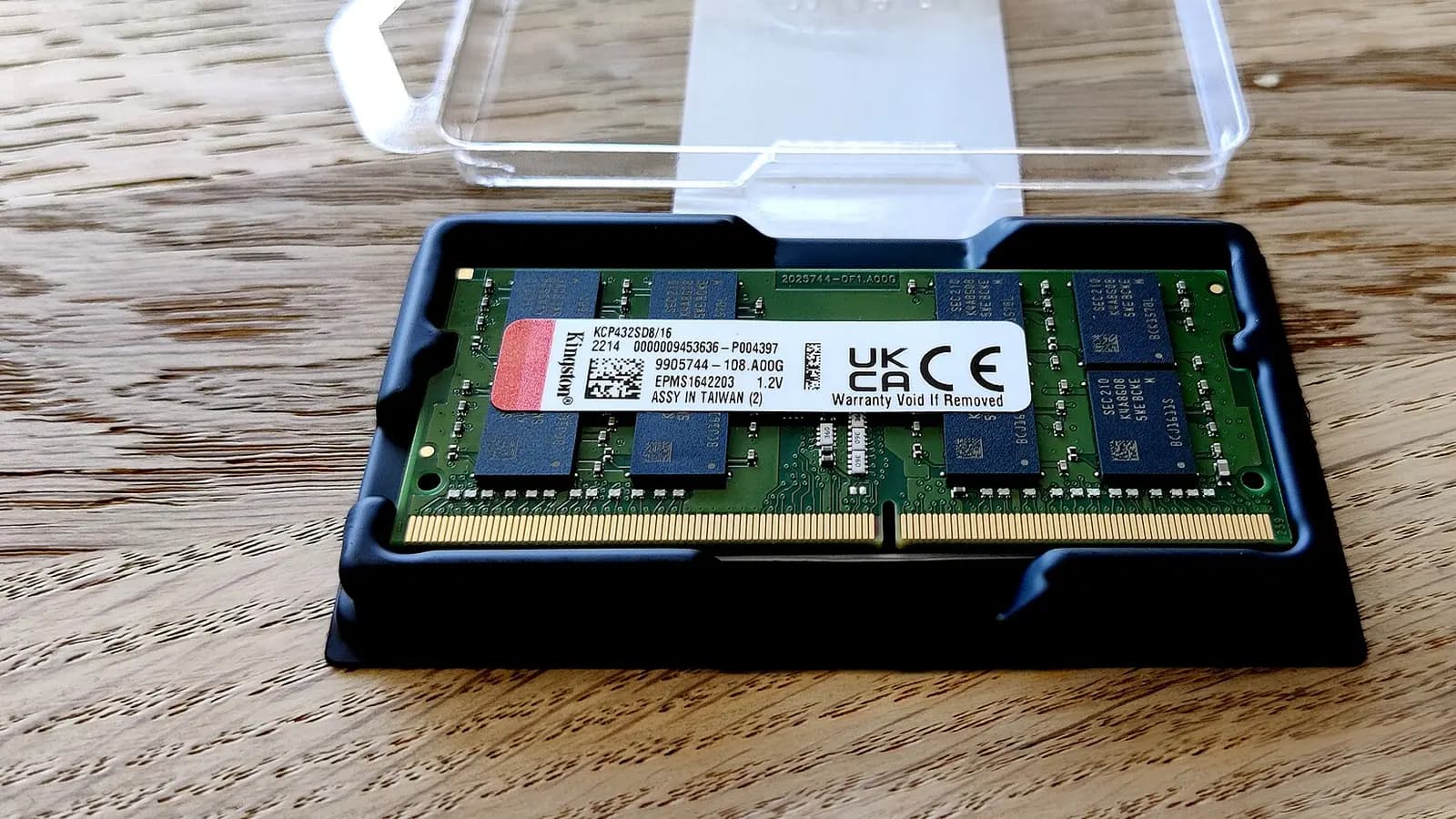
A laptop ram upgrade is possible only if your exact model has removable SO-DIMM memory and supports the type and capacity you plan to install. Before you buy, confirm whether the RAM is socketed or integrated into the system board, match the DDR generation and supported capacity, then fit the module with power and battery safely disconnected.
Start with the right decision
More memory helps when the laptop is genuinely running out of usable RAM. RAM is the short-term working memory your laptop uses while apps are open. If the slowdown is caused by storage, heat, software faults or a failing part, adding memory may not solve the problem.
Use this decision tree before buying anything:
- Apps slow down when many tabs or programs are open: check your operating system’s performance view, such as Windows Task Manager, while using your normal workload. If memory use stays close to full and the system is paging, which means using storage as overflow memory, a capacity upgrade may help.
- The laptop is slow even when memory use is low: look at storage, processor load, cooling or software before buying RAM.
- The laptop crashes, will not boot, or gives a startup memory error: treat this as possible faulty memory or a repair issue, not just a capacity upgrade.
- A memory diagnostic reports errors: stop using that configuration and isolate the memory modules one at a time if the laptop has removable modules.
- The laptop has no removable memory: a RAM capacity upgrade is not a DIY option; consider whether storage, battery or another repair better matches the symptom.
If your issue points to memory capacity, continue. If it points to failure, the safest next step is to confirm whether the existing module can be reseated or replaced.

Check whether your laptop can be upgraded
The first question is not how much RAM to buy. It is whether the laptop has socketed memory at all. Dell notes that some laptops cannot have RAM upgraded because the RAM is integrated into the system board. Apple says MacBook Pro models not listed in its memory replacement table have non-removable memory. Microsoft’s Surface self-repair lists for the Surface Laptop models shown include parts such as display, keyboard, removable SSD, battery and other assemblies, but RAM is not listed as a replaceable component for those entries.
For common Singapore laptop families such as Dell Inspiron, XPS and Latitude; HP Pavilion, ProBook and EliteBook; Lenovo IdeaPad and ThinkPad; ASUS VivoBook, ZenBook and TUF; and Acer Aspire and Swift, do not assume all models in the same family are alike. One model may have a free SO-DIMM slot, another may have memory integrated into the board, and another may combine integrated memory with one slot. The exact model code matters.
To identify your laptop accurately:
- Find the full model name from the label, system information screen or maker support page.
- For Dell systems, use the Service Tag or Express Service Code to reach the model-specific documentation and parts information.
- For MacBook Pro, identify the exact model first, then compare it with Apple’s listed models that support memory removal or installation.
- Open the service manual or hardware maintenance manual for that exact model and look for the memory section.
If the manual does not show a memory removal or installation procedure, do not force the issue. Thin laptops may still have a bottom cover, but that does not mean the memory is replaceable.
Fill in your compatibility worksheet
Use a simple worksheet before you shop. This prevents the common mistake of buying a module that fits your budget but not your laptop.
| Item | Write down | Why it matters |
|---|---|---|
| Exact model | Full model code | Manuals vary |
| Memory type | DDR3, DDR4 or DDR5 | Must match support |
| Form factor | SO-DIMM | Laptop module size |
| Slots | Used and free | One stick or kit |
| Maximum capacity | Model limit | Avoid unsupported size |
| Speed | Manual-supported speed | System may limit it |
| Battery step | Disable or disconnect | Safer opening |
Dell says laptops use SODIMM memory modules and that the computer must support the DDR generation being installed. It also warns that an unsupported RAM type can physically damage the module or the motherboard slot. Apple’s older listed MacBook Pro models show why the exact specification matters: several 13-inch models use two slots, support a maximum of 8 GB, and require DDR3 SO-DIMM memory with 204 pins and the stated speed.
If your laptop specification says LPDDR and the service manual does not show a removable memory module, treat the memory as non-removable unless the maker’s exact manual says otherwise. If the manual lists a SO-DIMM slot, follow its capacity, speed and slot instructions rather than guessing from a visually similar model.

Choose the right memory
Buy from the worksheet, not from a headline specification. The new module must be the correct DDR generation for the laptop, the correct laptop form factor and within the maximum capacity the model supports. A DDR5 SO-DIMM is not a substitute for a DDR4 or DDR3 slot.
Decide whether you need one module or a pair by checking the number of slots and the maker’s installation order. Kingston notes that mixing different capacities, speeds or brands can cause compatibility issues, and the laptop documentation should be checked for the correct installation order. If you are replacing all removable memory, a matched kit can reduce the chance of mixed-module behaviour. If you are adding one module to an existing one, match the specification as closely as the laptop manual requires.
Speed also needs a calm reading. Kingston notes that overclockable memory may not run at its advertised speed because the processor, chipset, system design or BIOS can limit it. In plain English: buying a faster-rated module does not mean your laptop will necessarily run it at that headline speed.
If your worksheet says DDR5 4800 MHz SO-DIMM, you can compare the specification against the Crucial 8GB DDR5 4800 MHz SO-DIMM laptop RAM. If you are still confirming the type, start from the RAM category only after the model details are clear. LaptopClinic.sg is an online store with free delivery in Singapore; for compatibility checks, use the exact model code and ask before buying.
Brand and model names are used only to show compatibility. LaptopClinic.sg is not affiliated with any laptop maker.
Prepare before opening the laptop
Opening a laptop safely is mostly about removing power and avoiding electrostatic discharge, often called ESD. ESD is a small static-electric shock that can damage sensitive electronic parts even if you do not feel it.
Stop and ask a technician if the service manual tells you to disable a built-in battery and you cannot find that step, if the bottom cover will not release without force, or if the battery or internal cables block access to the memory slot.
Before removing the cover, follow the maker’s sequence for your model. Lenovo says to turn off the computer, unplug all power cords, disable the built-in battery and disconnect interconnecting cables before removing a customer-replaceable or field-replaceable unit. Lenovo also warns that the system board is sensitive to electrostatic discharge and says to ground yourself by touching a ground point or using an ESD strap.
Kingston says to disconnect the laptop power adapter and remove the battery before installing SO-DIMM memory. It also says to touch an unpainted earthed metal object or use an earthed anti-static wrist strap before handling RAM. ASUS gives the same safety direction in its service manual style: disconnect peripherals, telecommunication lines, power connector, external power supply, battery pack and related power sources before removing the bottom cover.
For older listed MacBook Pro models, Apple says to shut down, disconnect cables and, if the computer has been used, wait 10 minutes before removing the bottom case screws. That waiting step matters because internal parts can be warm after use.

Install the SO-DIMM without damage
A SO-DIMM is the smaller memory module format used in laptops. Handle it by the edges. Kingston warns never to press on or handle the memory around the integrated circuits, which are the small chips on the module.
- Shut down the laptop fully and remove external power.
- Follow the service manual to disable or disconnect the battery before touching the memory area.
- Remove the bottom cover using the screw locations and cover-release method for your exact model.
- If replacing a module, release the side lock tabs. Kingston describes releasing the lock tabs before removing the existing SO-DIMM; ASUS describes pushing the clips outward.
- Align the notch in the module with the key in the socket. This keying is there to prevent the wrong orientation.
- Insert the SO-DIMM at about 30 degrees, as Kingston specifies, until it is seated in the connector.
- Rotate the module down until the lock tabs click into place.
- If your model uses a protective film or mylar over the memory, follow the service manual. ASUS instructs reattaching the mylar to the new RAM in its X1405, X1505 and X1605 procedure.
- Before closing, check that the module is flat, both clips are engaged and no screw or small part is loose inside.
Do not power on immediately if something feels wrong. Lenovo says not to power on after replacement until screws, springs and small parts are confirmed in place and nothing loose remains inside.
After fitting: confirm it works
The first start after a memory change can feel slower while the laptop checks the new configuration. If it starts normally, confirm the installed amount in the firmware setup or the operating system’s system information page. Then open your usual workload and check whether the earlier memory pressure is reduced.
If the laptop does not boot or does not recognize the newly installed memory, Kingston recommends first verifying compatibility with the laptop model. Then shut down, disconnect power, remove the battery if it is removable, and reseat the module so it is fully seated and locked.
Use this isolation order:
- Power down and disconnect power again before touching the module.
- Reseat the new module and confirm both lock tabs are engaged.
- If there are two removable modules, test one module at a time in the slot order allowed by the laptop documentation.
- If one module boots and the other does not, do not keep retrying the failed arrangement.
- If both modules work separately but not together, check whether capacity, speed or brand mixing is causing a compatibility issue.
- If a memory diagnostic fails, treat the configuration as unreliable and stop using it until the module or slot is isolated.
If only part of the expected memory is shown, return to the model maximum, slot rules and whether some memory is integrated. If the module type, capacity and installation are all correct but the laptop still will not boot, ask a technician rather than repeatedly cycling power.
For help checking a Singapore order against an exact laptop model, contact LaptopClinic.sg on WhatsApp +65 8828 8180 or through the contact page. Overseas orders ship directly from the China warehouse, and the delivery date is confirmed with the customer on WhatsApp before payment.
Questions and answers
Can I upgrade the RAM in my laptop, or is it soldered?
Check the exact model service manual. If it shows SO-DIMM removal or installation, the memory is removable. If the maker says the memory is integrated, or the model is a MacBook Pro not listed in Apple’s memory table, a capacity upgrade is not available through removable RAM.
How do I find the maximum memory my laptop supports?
Use the documentation for the exact model. Dell tells users to check model-specific documentation for maximum capacity and number of slots. Do not rely on a similar-looking laptop from the same family.
Should I buy DDR3, DDR4, DDR5 or LPDDR?
Buy only the memory type stated for your exact model. Dell says the computer must support the DDR generation being installed, and the wrong type can physically damage the module or slot. If the specification lists LPDDR and no removable module procedure is shown, treat it as non-removable unless the maker’s manual says otherwise.
Can I mix my old RAM with a new stick?
Sometimes, but it is not risk-free. Kingston notes that mixing different capacities, speeds or brands can cause compatibility issues. Check the laptop documentation for installation order and match the existing specification as closely as required.
What if the laptop will not boot after installation?
Shut it down, disconnect power, remove the battery if removable, and reseat the module so it is fully seated and locked. If it still fails, verify compatibility, test one removable module at a time if the model allows it, and stop if a diagnostic reports errors.
Sources
- Dell Technologies: How to Install or Upgrade RAM or System Memory in a Dell Computer
- Apple: MacBook Pro: how to remove or install memory
- Microsoft: Self-repair information for your Surface device
- Lenovo: Hardware Maintenance Manual - ThinkPad P1 Gen 9, T1g Gen 9: Before hardware replacement
- Kingston Technology: How to install memory in a laptop PC
- Kingston Technology: Desktop/Notebook Memory - Support
- ASUS: X1405/X1505/X1605 Service Manual