
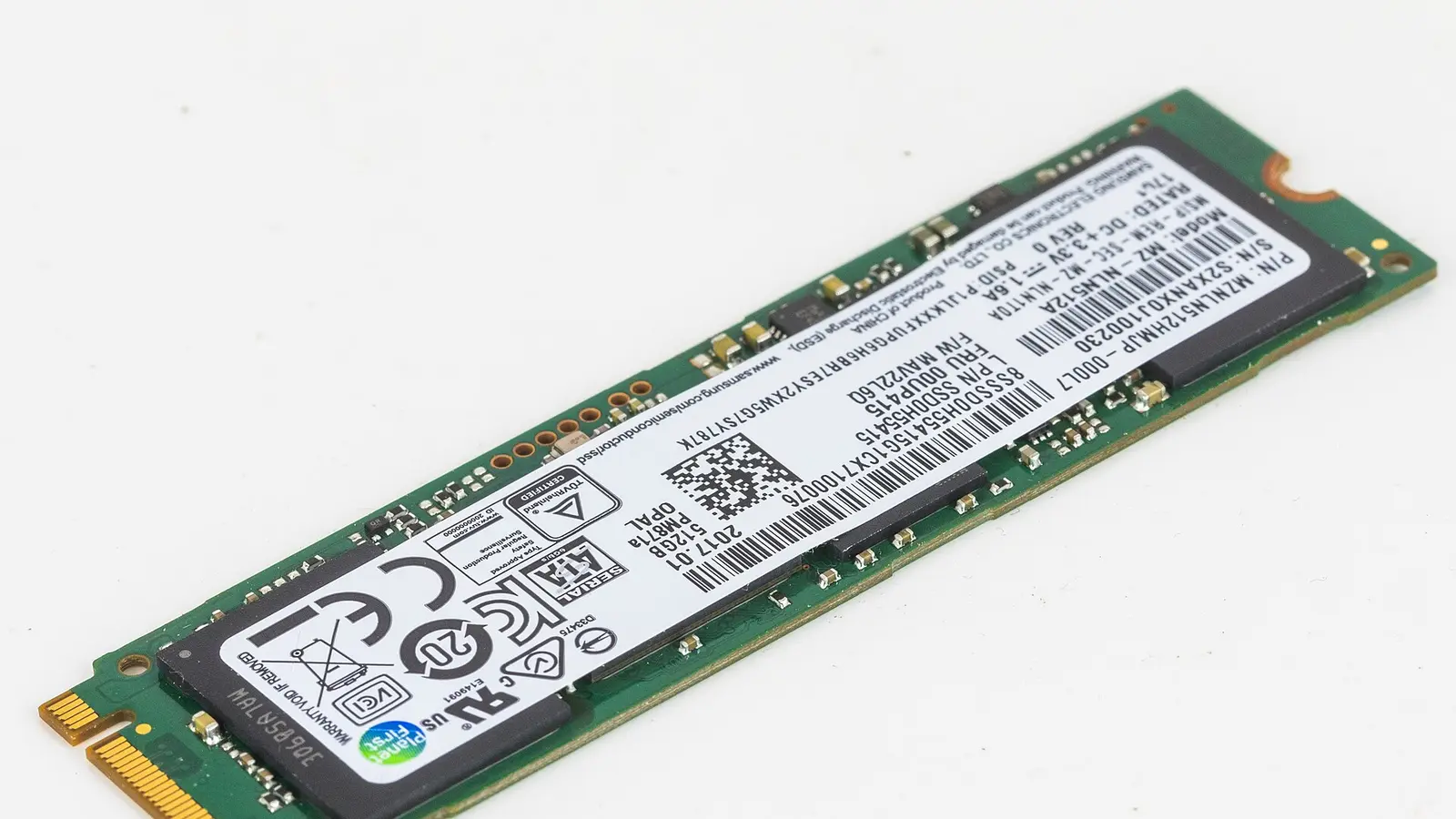
What is M.2 SSD? It is a small, gumstick-like solid-state drive shape that mounts directly to a motherboard, not a speed rating by itself. The important part for a laptop owner is that an M.2 drive can be SATA or NVMe, and your laptop must support the drive’s physical size, key, and interface.
Start with the laptop, not the drive
The safest way to choose an M.2 replacement is to identify what the laptop supports before looking at any SSD. Dell’s guidance is clear on the main point: M.2 is a platform for several card types, not only storage. An M.2-looking slot can be for Wi-Fi, Bluetooth, WWAN, or an SSD, so you need to confirm that the slot is actually meant for storage.
Use this decision path before buying or opening the laptop:
- Find the exact laptop model, service identifier, or full model name printed on the laptop or shown in the maker’s support tools.
- Open the laptop maker’s support page and find the service manual, user manual, or setup and specifications guide for that exact model.
- Look under the storage section or the M.2 slot section.
- Check whether the laptop has an M.2 storage slot at all.
- Confirm the supported physical size, such as 2230, 2242, 2260, 2280, or 22110.
- Confirm the interface: SATA, PCIe/NVMe, or a socket that the maker says supports both.
- Confirm the key type, such as B-key or M-key, if the manual lists it.
- If the laptop has more than one M.2 slot, check each slot separately, because two slots in the same computer can have different specifications.
That last point matters. Dell says the number of M.2 NVMe slots varies by computer model, and two M.2 slots in the same computer may not support the same specifications. A drive can look right and still fail to work if the size or interface does not match.

M.2 is a shape, not a speed
M.2 is a form factor. A form factor means the physical design: the connector, board shape, and mounting dimensions. Kingston describes M.2 as the newer name for NGFF, and as a small gumstick-like SSD form factor that mounts directly to the motherboard. Samsung also defines M.2 as a form factor describing the connectors and physical specifications used for M.2 SSDs.
This is why “M.2” alone does not tell you how fast the drive is. It also does not prove that a drive will work in a laptop. An M.2 card may be an SSD, but the same general platform is also used for other add-in cards such as Wi-Fi, Bluetooth, and WWAN cards.
The size code is physical. In a code such as 2280, the first two digits mean the width in millimetres, and the next digits mean the length in millimetres. So 2280 means 22 mm wide and 80 mm long. Kingston lists common M.2 SSD module sizes as 2230, 2242, 2260, 2280, and 22110, all 22 mm wide with different lengths.
| Marking | Meaning | Why it matters |
|---|---|---|
| 2230 | 22 mm × 30 mm | Short module |
| 2242 | 22 mm × 42 mm | Needs matching mount |
| 2280 | 22 mm × 80 mm | Common length |
| 22110 | 22 mm × 110 mm | Long module |
The screw or latch position in the laptop must match the module length. ASUS gives a practical example in a device manual: one M.2 PCIe Gen3 x4 connector supports M.2 22x80 or 22x42, key type M, for NVMe or SATA SSD. That kind of line in a manual is exactly what you are looking for.
The two storage types: SATA and NVMe
There are two broad kinds of M.2 SSD you will meet in laptops: M.2 SATA and M.2 NVMe. They can look similar because both use the M.2 shape, but they communicate with the computer differently.
- M.2 SATA SSD: an M.2 drive that uses the SATA bus.
- M.2 NVMe SSD: an M.2 drive that uses PCIe and the NVMe storage protocol.
A bus is the path used for data to travel between parts of the computer. A protocol is the set of rules used to move storage commands and data. Samsung defines NVMe as a storage protocol designed to improve SSD performance over SATA, and says NVMe SSDs are much faster than SATA SSDs. Samsung also explains that PCIe was adopted for next-generation SSDs because of its data throughput capability.
Kingston makes the compatibility point very plainly: not all M.2 drives are NVMe, and some are SATA. Kingston also says an M.2 SSD supports either SATA or PCIe, not both at the same time. The system socket may be designated by the manufacturer for SATA, PCIe, or sometimes both, so the laptop manual is the deciding document.
If the manual does not confirm the drive size, key, and interface, stop before buying or forcing the drive into the slot. A physically similar M.2 SSD can still be the wrong part, and Dell warns that a drive will not work if the size or interface does not match, even when it appears to fit.
Keys, notches, and why fit can mislead
The small cut-out on an M.2 card is called a key. The matching shape in the laptop slot is meant to control what can be inserted. It is a useful clue, but it is not the whole compatibility check.
Samsung explains that M.2 slots come in different key types. A B-key slot can support SATA or PCIe NVMe using up to two PCIe lanes. An M-key slot enables NVMe SSDs using up to four PCIe lanes. Samsung also states that its NVMe SSDs use M-key and cannot be inserted into a B-key M.2 slot.
For a laptop owner, the practical reading is simple:
- The notch helps you avoid some wrong combinations.
- The manual still has to say whether the slot supports SATA, NVMe, or both.
- The manual still has to list a supported length that matches the screw or latch position.
- A Wi-Fi M.2 slot is not automatically a storage slot.
Do not judge only by the connector. Dell says M.2 compatibility should be checked by type, physical length, model, and key interface. That is why a replacement should be matched to the laptop model, not just to the old drive’s general appearance.
How to check your laptop without guessing
If your laptop is still working, record its exact model before you open it. If it is not working, use the label on the underside, the purchase invoice, or the maker’s support identifier. Then use the maker’s manual rather than a marketplace listing or a forum post.
What to look for in the manual
- Storage section: this is where many manuals list supported SSD types.
- M.2 slot entry: check whether the slot is for storage, wireless, or another card type.
- Supported size: look for codes such as 2230, 2242, 2260, 2280, or 22110.
- Interface: look for SATA, PCIe, NVMe, or wording that says the slot supports both.
- PCIe generation: if the manual lists it, match your expectations to what the laptop supports.
- Key type: check for B-key or M-key wording where the manual provides it.
Dell’s process for its computers is to enter the Service Tag or model on Dell support, open the Setup and Specifications guide or Service Manual, and look under Storage or M.2 slots for supported size, interface, and PCIe generation. For other laptop brands, the same principle applies: use the exact model’s own manual or ask the system provider.
If you have already opened the laptop, compare what you see with the manual. ASUS describes the physical installation in straightforward terms: open the system, insert the M.2 module into the system-board slot, and secure it with the latch or screw position for the correct length. If your laptop’s screw or latch position does not line up with the SSD length, do not improvise.
If you cannot identify the slot or the old drive, you can ask us to help check compatibility through LaptopClinic.sg contact. LaptopClinic.sg is an online store with no public walk-in counter, so a clear photo of the old drive label and the laptop model is usually the most useful starting point.
Before replacing a drive that seems faulty
A missing or unreliable SSD is not always proof that the SSD itself has failed. It may be the drive, the slot, the connection, or a mismatch introduced during a replacement attempt. Before you order a part, slow down and separate detection problems from compatibility problems.
Start with what the laptop reports. If the drive is listed by the system but the operating system does not start, the problem may be different from a drive that is not detected at all. If the drive disappeared after a recent replacement, re-check the manual for size, key, and interface first, because an incompatible M.2 SSD can physically fit and still not work.
If you are comfortable opening the laptop, remove power, open the system according to the laptop maker’s instructions, and check whether the module is fully seated and secured at the correct screw or latch position. The ASUS manual example shows why the fastening point matters: the module is inserted into the system-board slot and then secured for the correct length. A module sitting at an angle or held at the wrong point should not be used.
- If the old drive works again after being reseated, the issue may have been contact or fastening.
- If a newly fitted drive is not detected, confirm that the laptop supports that exact M.2 interface.
- If two compatible drives are not detected in the same storage slot, the laptop slot or system board may need technician diagnosis.
- If you are unsure whether the slot is for storage or wireless, stop and verify the manual before continuing.
Ask a technician when the laptop has liquid damage, the connector looks damaged, the screw post is broken, or the drive cannot be secured correctly. Also stop if you feel resistance while inserting the module; Samsung’s key-type guidance makes clear that not every M.2 card belongs in every M.2 slot.
Replacement planning without overbuying
Once compatibility is clear, choose based on what the laptop can actually use. If the laptop manual lists only M.2 SATA, an NVMe drive is not the right replacement. If it lists NVMe, the drive should match the supported physical size and key. If the manual says the slot supports both NVMe and SATA, either type may be possible, but the chosen drive still has to match the listed size and mounting position.
NVMe is the faster technology compared with SATA, but that does not make every NVMe drive a worthwhile upgrade in every laptop. The laptop’s own slot specification, cooling design, and supported PCIe generation shape the result. When the manual lists a particular PCIe generation, use it as a compatibility and expectation guide rather than assuming every newer drive will behave the same in an older laptop.
For a safe replacement, plan the job before opening the bottom cover:
- Back up important files before changing storage.
- Decide whether you are moving the old system across or installing fresh.
- Keep the original screw, latch, thermal pad, or cover parts in order if your laptop uses them.
- Insert the module into the correct system-board slot.
- Secure it at the screw or latch position that matches the supported length.
- Re-check detection before closing everything fully, if the laptop design allows safe testing.
If you need other laptop replacement parts while the machine is open, you can browse the LaptopClinic.sg catalogue. For storage compatibility questions, the model number and the old SSD label are more important than guessing from appearance.
Questions and answers
What does M.2 actually mean on an SSD?
M.2 means the physical form factor: the connector style, board shape, and mounting dimensions. It does not by itself mean NVMe or high speed.
Is M.2 the same thing as NVMe?
No. M.2 is the shape. NVMe is a storage protocol used by PCIe-based SSDs. Kingston says some M.2 SSDs are SATA, and Samsung defines NVMe as a protocol designed to improve SSD performance over SATA.
How do I know if my laptop has an M.2 slot?
Check the exact model’s service manual, user manual, or setup and specifications guide. Look under storage or M.2 slots and confirm that the slot is for storage, not only for wireless cards.
Can I put any M.2 SSD into any laptop M.2 slot?
No. The laptop must support the drive’s physical length, key, and interface. Dell warns that a drive will not work if the size or interface does not match, even if it physically fits.
What do sizes like 2230, 2242 and 2280 mean?
The first two digits are the width in millimetres, and the remaining digits are the length in millimetres. For example, 2280 means 22 mm wide and 80 mm long.
Why might a new drive fit but not work?
The slot may support the wrong interface, the wrong key type, or a different storage role. Some M.2 slots are for Wi-Fi or other cards, and some storage slots support SATA, PCIe/NVMe, or both depending on the laptop model.
Sources
- Dell Technologies: Differences Between M2 Cards M2 Slots Keys Sizes and Types
- Dell Technologies: NVMe SSD Guide: Sizes, Setup, Troubleshooting and FAQs
- Kingston Technology: Types of SSD Form Factors
- Kingston Technology: FAQs for SATA and M.2 SSDs
- Samsung Semiconductor: Internal SSD Product Information
- Samsung Semiconductor: Internal SSD Installation
- ASUSTeK Computer Inc.: NUC 14 Essential User Manual